

1. Check for an existing expense
- Open the demo matter and select Accounting → Case Expenses.
- Open All Expenses and look for TRAINING-125-01 or the matching vendor, amount, and description.
- If the expense already exists from an earlier exercise, open it and continue to the verification step. Otherwise, select Add Expense.
2. Enter and save the cost
- Select the demo vendor in Vendor / Payee.
- Choose Record Request as the expense type and enter 125.00 as the amount.
- Enter the source bill’s date and the example description. In Invoice #, enter TRAINING-125-01. Enter Invoice Due Date if the fictional bill provides one. If a matching invoice appears, inspect it and select Use Existing Invoice only if it is the same bill.
- Leave this training cost unpaid. If asked to choose funding and it has not been provided, keep it undecided. Do not guess a bank account or mark the vendor paid. Ask your accounting owner about any required choice you cannot complete.
- Select Add Case Expense.
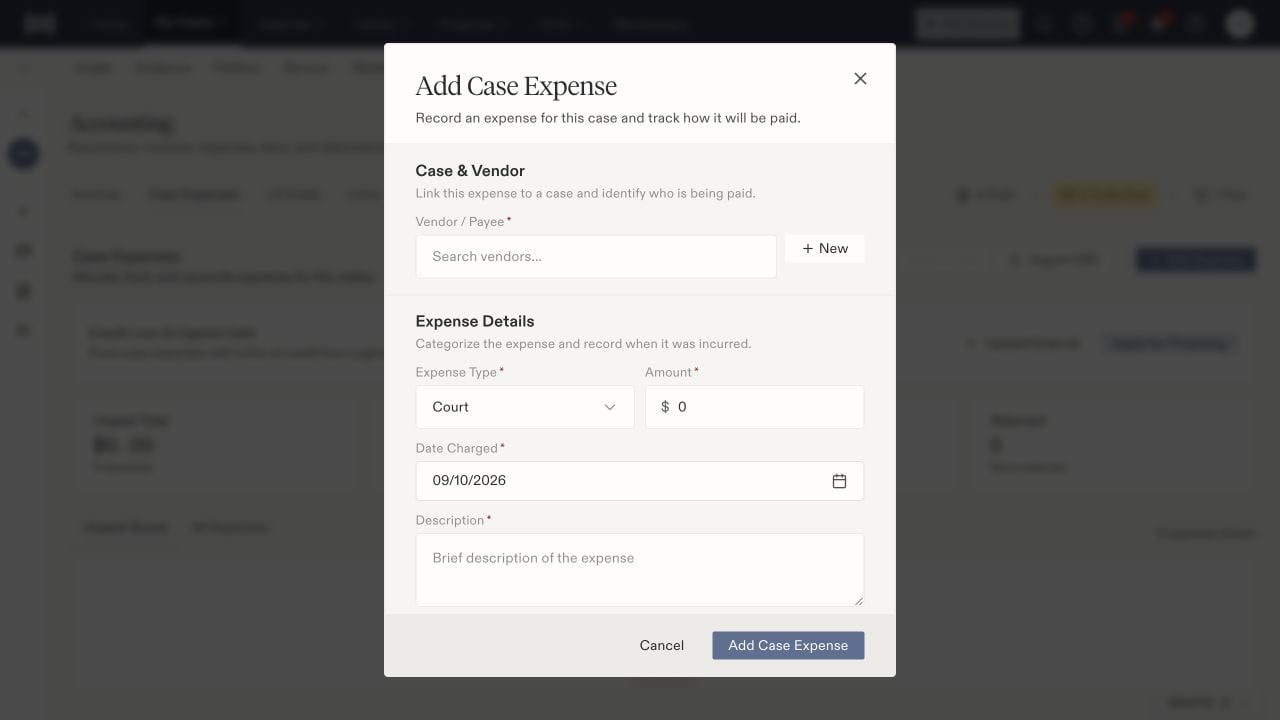
Form layout only: this image does not contain the tutorial values. Enter Record Request, $125, and November 2, 2026 from the table above. Available payment controls depend on your role.
3. Verify the expense and its invoice
Find the expense in All Expenses and open it. Compare the case, vendor, amount, date, and invoice reference with your example. Note its Expense ID when shown. If a value is wrong, edit this record instead of adding another. Entering Invoice # while creating the expense also creates a linked vendor invoice. Open Finances → Accounting → Payables, find TRAINING-125-01, and compare its vendor, total, and linked expense. The new unpaid invoice starts as Sent; that status does not mean an email was sent or payment was made. A review workflow may subsequently change it. Expected result: one unpaid $125 expense and one linked invoice. If funding is undecided, the expense can appear in Needs Review. You are finished with entry; skip step 4 when the invoice is already linked.4. If you saved the expense without an invoice number
Use this alternative only when the expense has no linked invoice. Search Payables for the bill first; do not create another copy of an invoice that already exists.- Open Finances → Accounting → Payables → Create Invoice and choose From Vendor.
- Select the same demo case and Demo Records Vendor. In Invoice Type, enter TRAINING-125-01 and use the fictional bill’s date and payment terms. If your trainer has not provided required terms, ask for them before continuing.
- In Line Items, choose Existing Expenses and select the expense you just saved.
- Complete Document & Status using the fictional bill and select Draft for this unpaid exercise. Draft is an invoice status, not a review decision.
- In Review & Confirm, check the invoice total and linked expense, then create the invoice.
- Reopen the invoice and confirm that it links to the original cost.