Open a report in Reporting and inspect Filters before interpreting its results. Existing template rules may already limit which rows appear.

Add a filter

  1. Expand Filters and select Add Filter.
  2. Choose the field, comparison, and value.
  3. Review how the rule combines with the other rules.
  4. Select Run Report and inspect both matching rows and the count.
  5. Save, reopen, and confirm the filter persists.
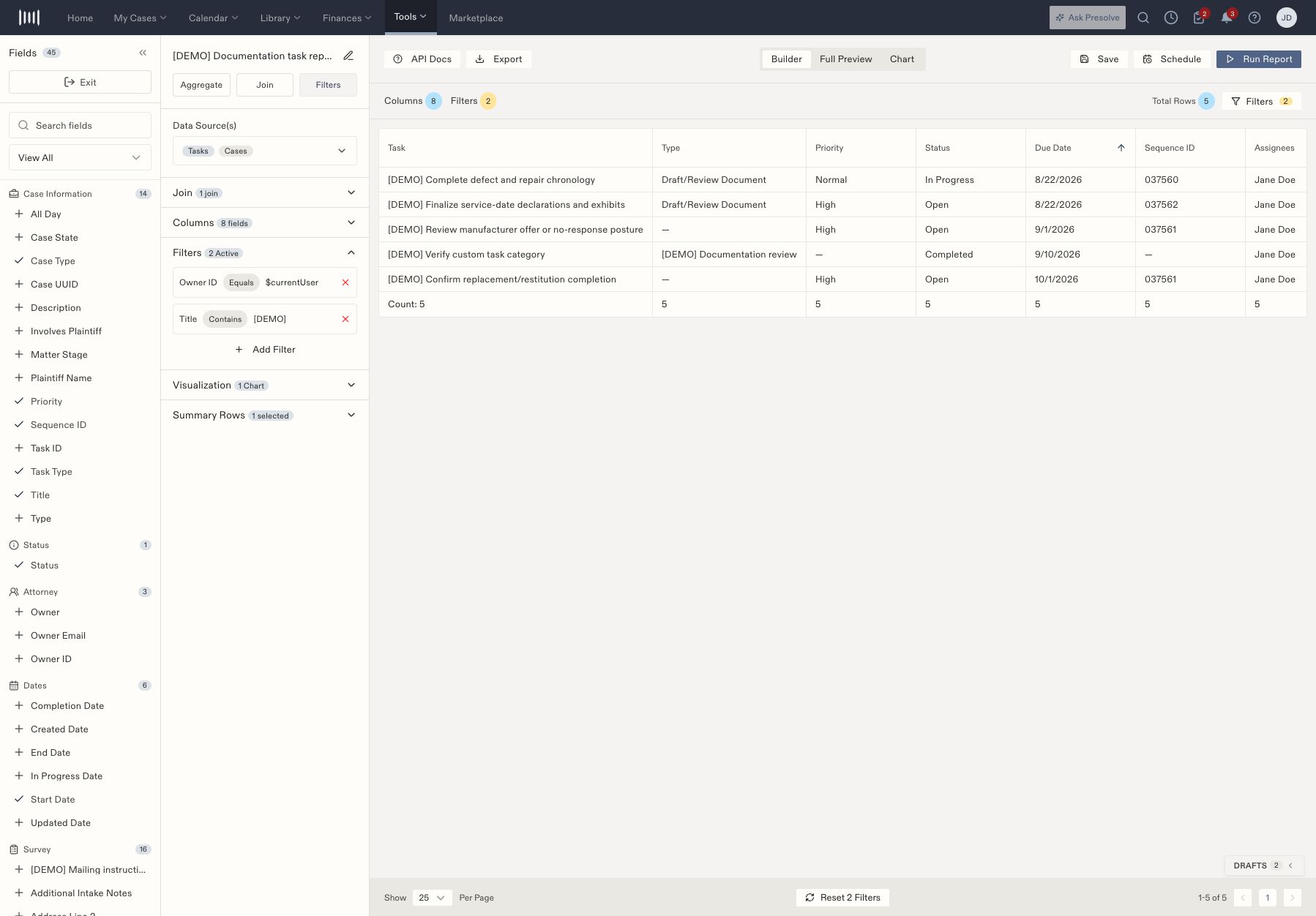
Report filters showing Owner ID Equals Current User and Title Contains the demo label.

Report filters showing Owner ID Equals Current User and Title Contains the demo label.

The example uses Owner ID Equals Current User together with Title Contains [DEMO]. Both must match. Owner is the report field being tested; it is not automatically the same as a task’s assignee. Text comparisons include equals, not equals, contains, not contains, starts with, ends with, empty, and not empty. Choose the comparison that fits the question: Contains finds a phrase within a longer title, while Equals requires the field to match the supplied value.

Troubleshoot unexpected rows

  • Too few rows: inspect every active filter, the data source, and joins.
  • Too many rows: check the selected comparison and the way rules combine.
  • Different counts later: rerun and consider whether records changed since the last view.
Removing a filter changes report scope; it does not delete the underlying records. Related: Create a report.

Choose a text comparison

Review the rule combination as well as each individual comparison. In the example, the two rules are joined by AND, so a row must match both the owner rule and the title rule.

Check a filter change before saving

Keep the question you are answering visible—for example, “Which demonstration tasks do I own?” Inspect a row you expect to match and a record you expect to be excluded. If the result is unexpected, check the field name first, then the comparison and value, then other filters and joins. Run the report again after correcting the rule. Save once the result matches the intended scope, and reopen the report to confirm the rule was retained.

Status labels across offices

HQ users with access to child case data see lead and matter status options qualified by organization. One stored status can have several labels, such as Appeal (HQ) / Appeal Filed (Washington). This is one option for the shared status key, not separate organization filters. Use the organization selector to choose which offices supply records. Results show each record’s own organization label, including when a status column is renamed. Display-only built-in status columns can span offices with different available options or customized system-status labels. Status filters, sorting, grouping, calculations, and charts still require compatible definitions. If those checks fail, narrow the organization scope or have an administrator align the definitions. Organization labels do not grant additional access.