

Accounting’s review establishes financial readiness. It is not a separate approval of the underlying legal settlement. Screenshots below use fictional local demonstration data; amounts and fee percentages are examples, not a firm policy.
Legal: prepare the draft
- Select Add Resolution and choose the case and resolution type.
- Enter the amount and required dates. For Back Fees, the period start and end dates are optional; the settlement date is still required. Review the payor, attorney fee percentage, and displayed fee dollars.
- Review Case referral source for the recorded source name and type. Set the source type in Intake → Additional Details → Referral Source Type. Attorney sources preselect Has Referral Attorney, including when no fee percentage is recorded. If a referral applies, check the referral attorney and fee details. Add supporting notes and documents through the appropriate matter records.
- Save the resolution. A user with settlement permissions but without payment-processing authority creates a Draft, without selecting a deposit account.
- Coordinate the handoff to the accounting user under your firm’s task or workflow process.
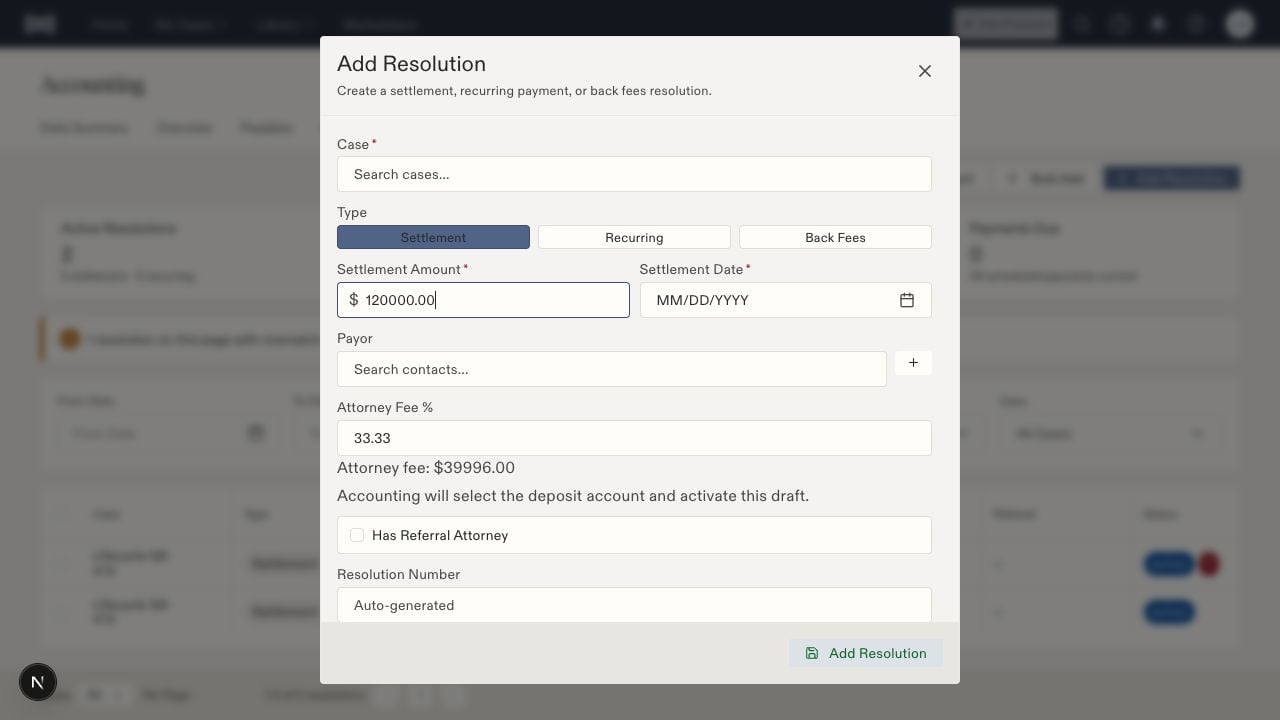
Legal users can prepare settlement terms without choosing a bank account. Accounting completes routing and activation.
Accounting: complete routing and activate
- Open the resolution’s Edit action.
- Compare the amount, dates, payor, attorney fee dollars, and referral details with the source settlement information. Correct discrepancies before activation.
- Select the appropriate Deposit Account for the firm, following its Operating/IOLTA policy. Use an available firm account; contact the integration owner if the correct account is missing.
- Set Status to Active and select Save Changes. An initial activation without a routing account is rejected.
- Verify the list shows the intended amount, deposit account, and Active status before linking incoming checks and proceeding with allocations.
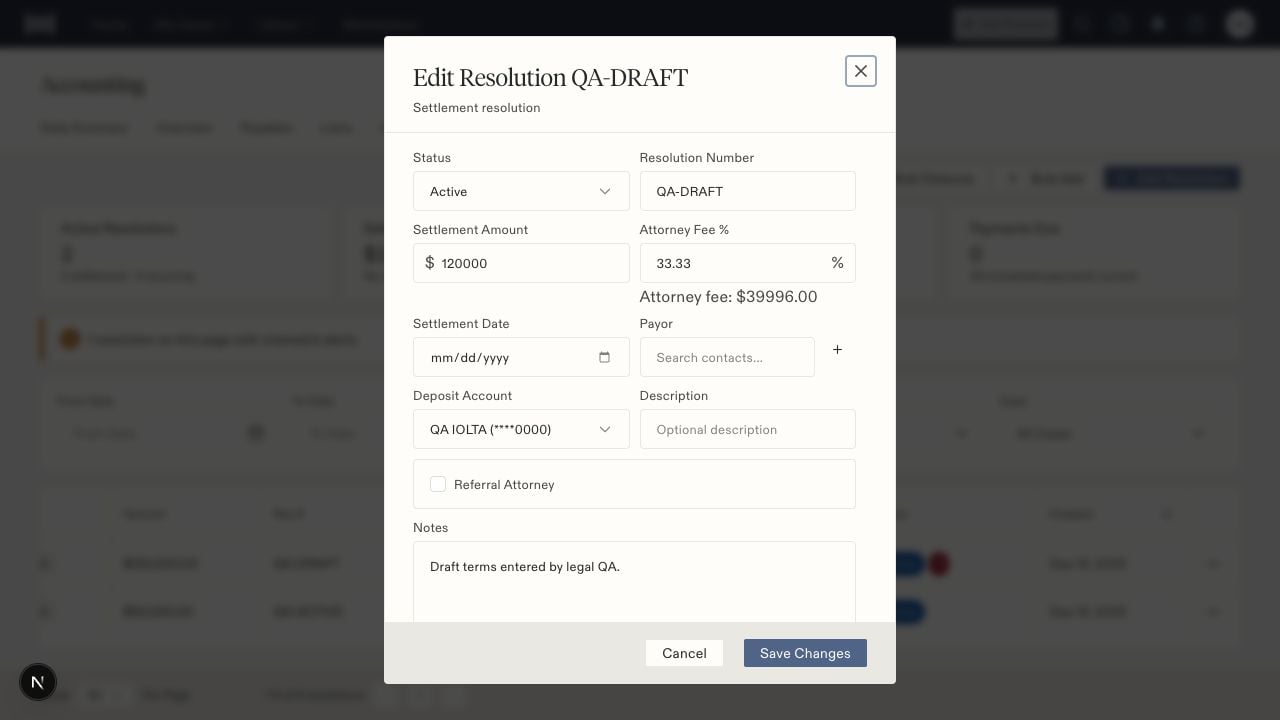
Accounting can edit financial terms, choose the deposit account, and set the resolution status. This example is already Active.
After activation
Legal staff can continue editing the resolution number, description, and notes. Financial terms, fee/referral changes, deposit routing, and status changes require accounting authority in addition to the relevant settlement permission.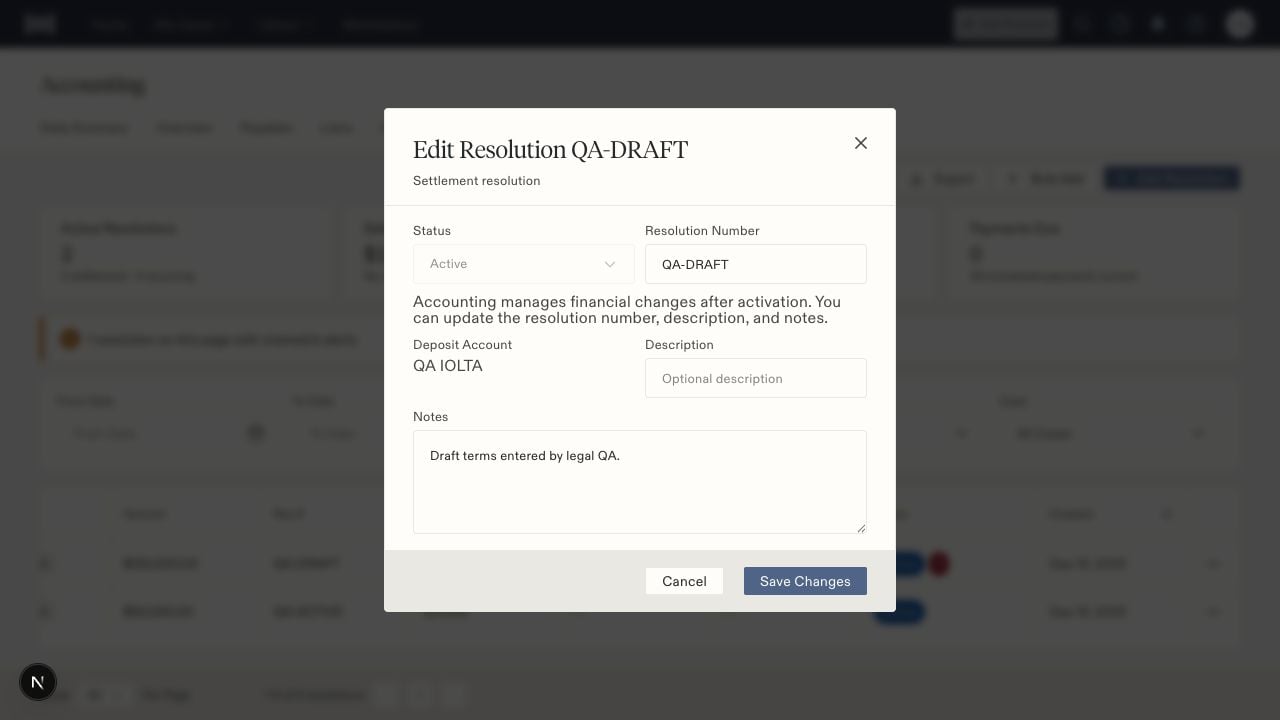
After activation, a legal user sees the account as read-only and can maintain nonfinancial details.