Locate intake, document, notification, contact-role, and integration configuration.
Open Settings from your account menu. Available tabs depend on your access and organization. A reader’s job function does not guarantee permission to change a firm setting.
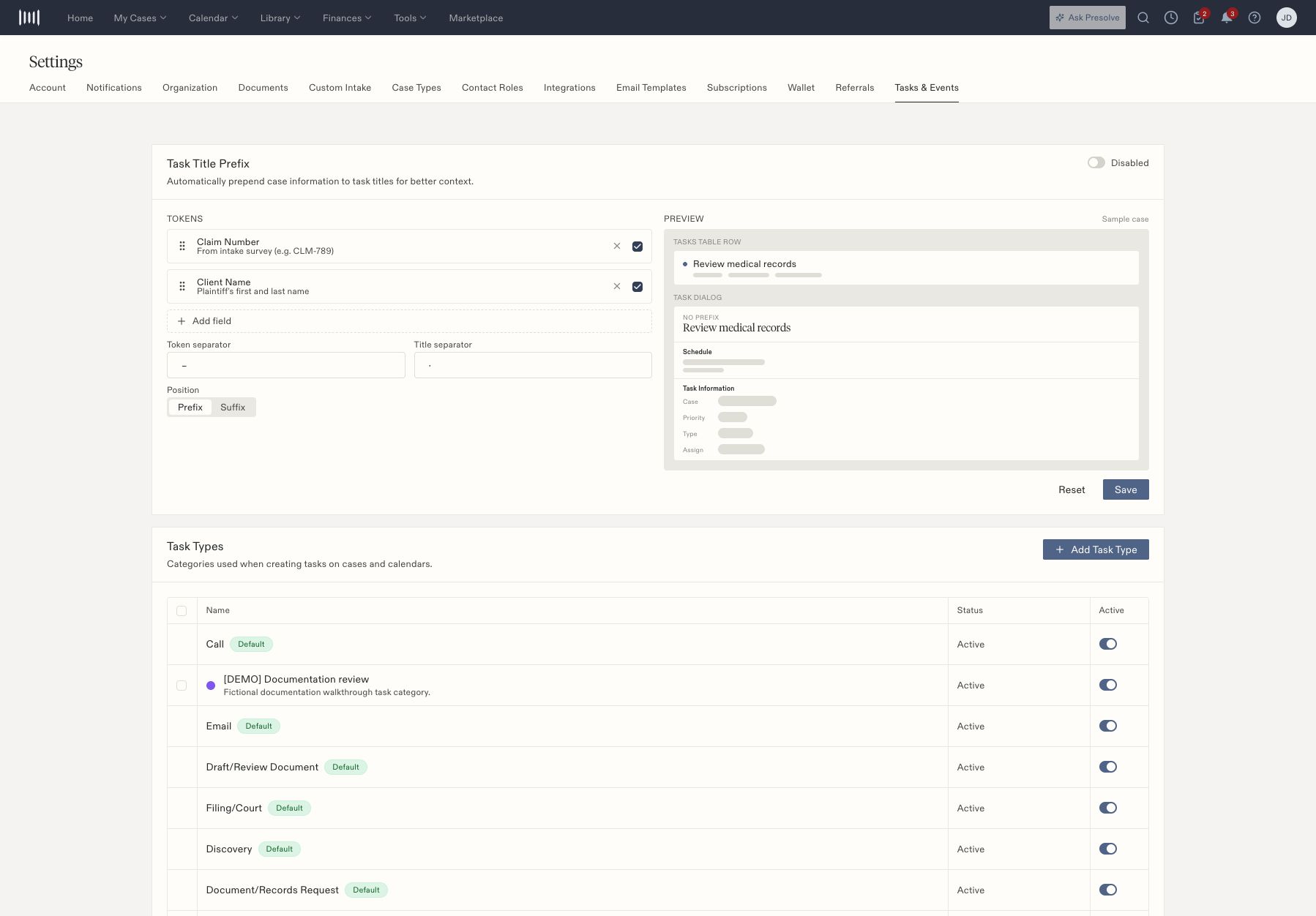
Settings navigation across the top, with Tasks and Events selected.
Tab
What it contains
Account
Personal account settings and master notification switches
Notifications
Individual email and SMS notification preferences
Organization
Organization configuration, including case-tag management
Documents
Default folders, e-sign types, reminder and notification configuration
Custom Intake
Intake sets, questions, decisions, preview, and publication
Case Types
Case-type configuration and matter layouts
Contact Roles
Roles for contacts associated with cases
Integrations
Provider connections and developer integration entries
Email Templates
Reusable email content and sender settings
Referrals
Referral defaults and related notification settings
Confirm the setting’s scope before saving: personal preference, organization default, case type, or one matter. Review inheritance or override text where it appears. Test a new intake or layout on an isolated case type before assigning it broadly.Contact roles describe a person’s relationship to a case. They are separate from employee access permissions. Similarly, changing a task category does not change who can view a matter.Start with custom intakes, task types, notification preferences, or integrations.
Document settings include default folders by case type and a fallback, custom e-sign document types, reminder controls, and signing-message settings. Where the screen distinguishes an inherited default from an organization override, check which value is effective before editing.Contact Roles can include built-in entries that cannot be edited and roles managed by a parent organization. A custom case-contact role describes a relationship to the case; it does not grant a staff member access.Email templates include a name, category, delivery method, sender or default mailbox, Cc, library attachment, and subject/body variables. Inspect the preview and sender settings together. The category controls where the template is offered in send dialogs, and shared templates resolve the sending attorney’s mailbox according to the screen’s explanation.Notification preferences have two levels: Account master switches and individual category settings. Review both when changing email or SMS preferences. See notification controls.Related guides: access roles, case-contact roles, tag automation, document defaults, email templates, and deadline settings.