

Understand the three parts
Review a rule pack
Expand a pack to inspect its rules. Check the Version, Status, description, and source references before using it. Within a rule, review the anchor, offset, calendar, counting rule, severity, warning/critical timing, and effective dates. A matching pack name alone does not establish that its assumptions match a particular matter. Draft packs can be edited by users with settings-edit access. Activating a pack freezes that version and records its activator. New version is the path for changing an active pack; Archive is a separate action for retiring it. Have the firm’s deadline owner review the configuration and its use in workflows before activation or retirement.Define a starting event
- Select Anchor Definitions → New Definition.
- Enter the required Label and review the automatically suggested Key. The key uses lowercase words separated by underscores.
- Add a description explaining when the event should be recorded and who verifies it.
- Choose the Value type.
- Select Allowed sources if the event should only come from particular channels, such as Manual, Workflow, Email, Document, API, or Portal. Leaving all unchecked allows any source.
- Select Create Definition, then confirm it appears in the list.
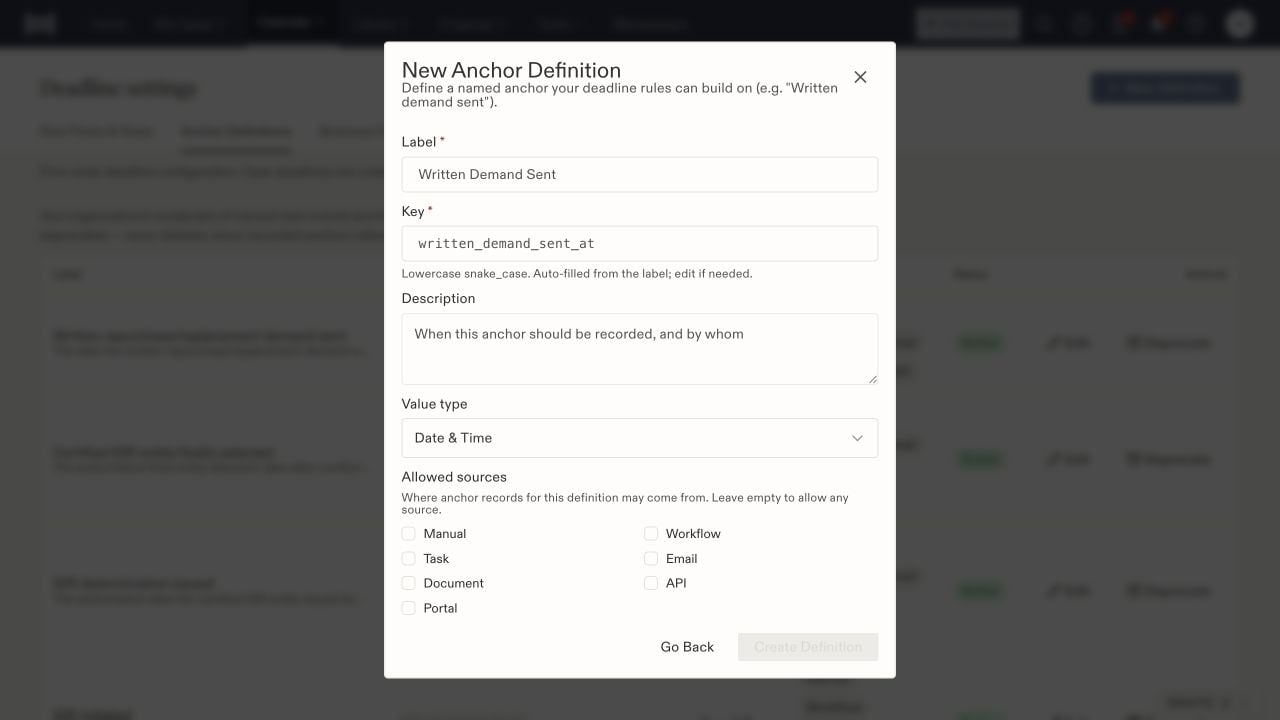
An anchor definition names the event and the sources allowed to record it.
Add a calendar exception
Under Business Calendars, read the chosen calendar’s description and loaded holiday years. An organization exception adds a specific day to that calendar’s treatment of business days. Select Add Exception, choose the calendar, and enter the date and label. Holiday and Closure remove a business day; Extra Business Day forces one, including on a weekend or holiday. An optional effective window limits when the exception applies to recalculations. Review the values before selecting Add Exception.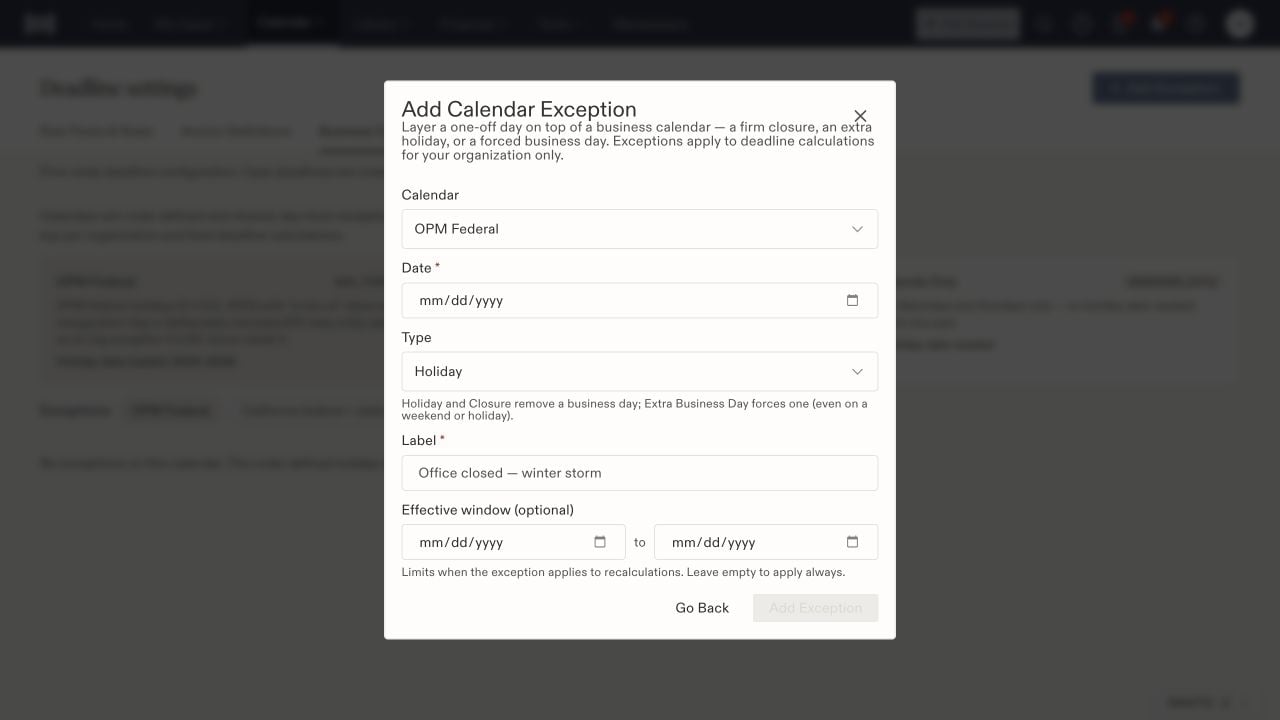
Calendar exceptions apply within the organization and have an optional effective window.